

How To Create A Hyperlink Google Docs
This tutorial is going to show you how to insert a hyperlink in a Google Docs document. We are going to cover the steps for completing this action briefly at the top of this article, then we will continue further with additional information and pictures for each of the steps.
- Open your Google document.
- Highlight the text to which you wish to add the hyperlink.
- Click theInsert link button in the toolbar above the document.
- Type or paste the Web page link into theLink field, then click theApply button.
Adding a hyperlink in Google Docs is important knowledge to have if you often use the word-processing application to create documents. Often you will find when creating content that you want to give your readers the ability to read more about a topic without including that information within your document. Giving them a hyperlink allows them to choose whether or not they want to visit that page by clicking the link and opening the page in a new window or tab.
There are several ways to add a hyperlink in Google Docs. We are going to focus on one method that is probably the easiest to remember, but we will also mention some of the other options at the end of the article.
Additional reading
- How to change margins in Google Docs
- How to select all in Google Docs
- How to clear formatting in Google Docs
- How to change a link in Google Docs
- How to make Google Docs landscape
How to Add a Link in a Google Docs Document
The steps in this article were performed in the desktop version of the Google Chrome Web browser, but will also work in other desktop browsers like Mozilla Firefox or Microsoft Edge. For the purposes of this guide it is probably easiest to have a bookmark or open tab for the page to which you want to link so you can just copy and paste the link to that page.
Step 1: Sign into your Google Drive at https://drive.google.com or docs.google.com and open the Google Docs document to which you wish to add the hyperlink.
Step 2: Highlight the text in the document to which you want to add the link.
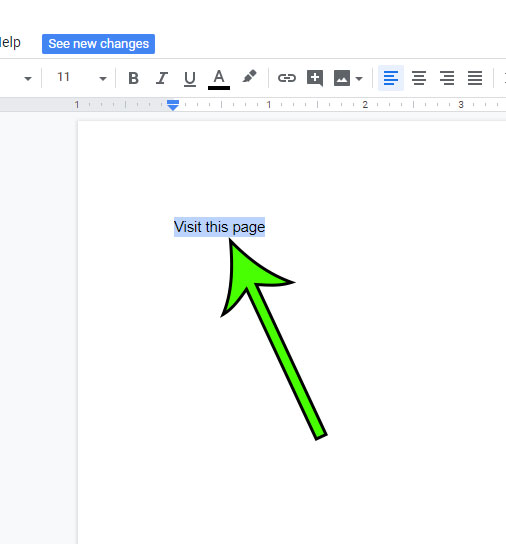
Step 3: Click the link button in the toolbar above the document.

Step 4: Add your Web address to theLink field, then click theApply button.

As mentioned above there are a few other ways to add links in Google Docs. The first way is to select the text for the link like we did in Step 1, then use theCtrl + K keyboard shortcut to open the hyperlink window.
Alternatively you can select the text for the link, then right-click on the selected text and choose theLink option at the bottom of the shortcut menu.
Finally you can select the text for the link, select theInsert tab at the top of the window, then choose theLink option from the drop-down menu.
Each of these methods will achieve the desired result, so it's simply a matter of preference as to which option you use.
If you need to edit link settings for an existing link in your document you can click on the link then use any of the methods above the re-open the Hyperlink window.
many of the other Google Apps provide the ability to add hyperlinks as well. For example, learn how to add a hyperlink in Google Sheets if you often create spreadsheets that could benefit from the addition of some clickable links inside of them.

Matt Jacobs has been working as an IT consultant for small businesses since receiving his Master's degree in 2003. While he still does some consulting work, his primary focus now is on creating technology support content for SupportYourTech.com.
His work can be found on many websites and focuses on topics such as Microsoft Office, Apple devices, Android devices, Photoshop and more.
How To Create A Hyperlink Google Docs
Source: https://www.supportyourtech.com/google/docs/how-to-create-a-hyperlink-in-google-docs/
Posted by: sandovalventing.blogspot.com
0 Response to "How To Create A Hyperlink Google Docs"
Post a Comment